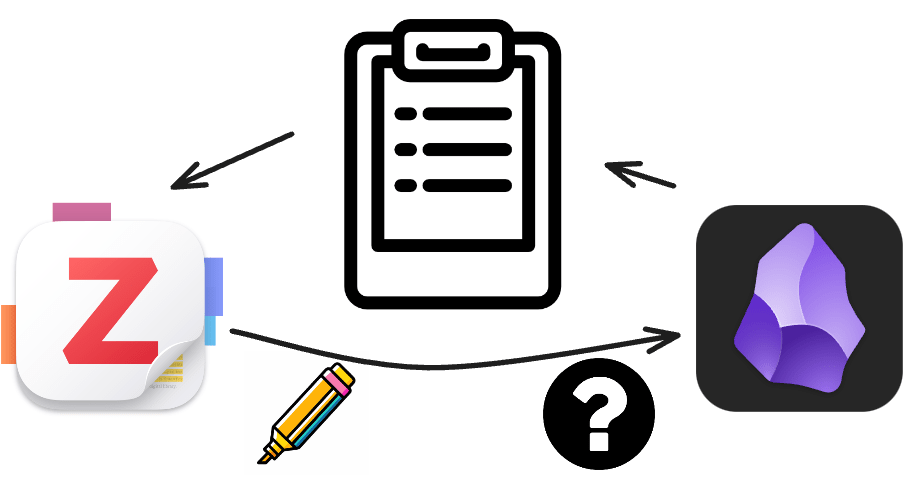
Managing a vast collection of academic references can be overwhelming—especially when reading the same paper multiple times or struggling to connect ideas across sources. While some may rely on memory, most researchers benefit from a more structured and efficient approach. After a decade of exploring various methods, I adopted the Zettelkasten system using Zotero for reference management, seamlessly integrated with Obsidian for powerful note-taking. This combination not only simplifies the process of organising literature notes but also transforms how I synthesise knowledge and develop research insights. Over the past three years, I have refined this workflow, and it has become indispensable to my academic productivity. If you’re looking to elevate your own research process, I’m sharing my Obsidian Research Note Template, designed to integrate Zotero metadata effortlessly into Obsidian markdown notes.
Obsidian Research note template in my GitHub: a template for integrating Zotero metadata to Obsidian markdown note.
- Background and necessary technical ingredients
- Structure of the research note template
- First-time import: an example involving simple literature
- Updating new highlights: an example featuring a book
- Conclusion
Background and necessary technical ingredients
When dealing with a large number of academic references, traditional methods often fall short. These references build blocks for writing essays, research publications, and proposals. However, it is impractical to read and memorise them all. To search for specific topics or solve research problems, we often read the same paper multiple times and constantly switch between articles. Additionally, finding connections between pieces of knowledge from these references can be challenging. While some geniuses may be able to memorise all the references, most people like me, prefer to find a more effective methodology to overcome these difficulties.
Effective reference management in academia involves both methodology and technique. Methodology focuses on organising references in practical ways, while technique refers to the various programs that can facilitate this process. After exploring different programs and methods for reference management over the past decade, I encountered some frustrations but ultimately chose to adopt the Zettelkasten method, primarily using Zotero. One of the main reasons for this choice is its seamless integration with Obsidian, which significantly enhances my overall academic workflow. I have been using and refining this setup for about three years, and it perfectly meets my needs.
On the methodological side, I incorporate the Zettelkasten system as part of my knowledge management (PKM). The references in Zotero serve as literature notes within the Zettelkasten framework. Given the complexities of academic references, my approach to digesting various sources, including the detailed workflow methodology, has become quite refined. I also adapt my methods based on different scenarios. For the technical side, I utilise Zotero and Obsidian. A great resource for enhancing the academic workflow with Obsidian research note template is the blog by Dr. Razlogoya. My own template adapts her work and others[^1][^2]. Other than one technical issue for now (2025-01-11)[^3], everything works well.
From Zotero to Obsidian
The basic workflow for deepening understanding of a research note assistant by Zotero and Obsidian is

- Read the paper first
- Write down my question or observation in the note associated with the highlight.
- Use different colour highlight
- Import highlight and my note from Zotero to Obsidian
- Write my summary or connect the solution to an existing problem
- Reread the paper next time when needed
- Import new highlight and modify my summary (go to step 2 and then it is a loop)
In this blog, the necessary plug-ins are listed for both Zotero and Obsidian.
Obsidian
Basic Plug-in
- Zotero integration: Connect Zotero and Obsidian by importing Zotero metadata
- Dataview: A high-performance data index and query language over Markdown files.
- Templates: No need to install, it is a core plug-in.
Suggested Plug-in
- Tag wrangler: Provide nasty tag structure
#main/subtopic - Advanced table: Better manage markdown table
- Footnotes: Make footnote without breaking the file structure
- Callout manager: Customise callout block
I will focus on the technical aspects for deepening understanding with a brief introduction of my research note template. Additionally, I will provide two simple scenarios for importing highlights and metadata from Zotero to Obsidian:
- First-time import: an example involving simple literature
- selected paper: Theory and example of catch bonds
- Updating new highlights: an example featuring a book
- selected book: Atom-photon interactions: basic processes and applications

Overview of research note
Structure of the research note template
Integrating many online templates and customising to my own needs, the structure of the template for research notes is shown as follows.

This template imports Zotero metadata and highlights it in Obsidian markdown notes, modified by my reading behaviour. There are four sections in this template:
- Properties: This section includes the metadata of a paper, such as authors, journals, years, and more.
- Questions I Have: In this section, I highlight any passages I don’t understand in purple, which will be shown later in this session.
- Summary: After importing all the data, I summarise it in my own words during this session.
- Annotations: All highlights from Zotero will be imported into this section.
Now, I will pick out important elements in each block and briefly explain the syntax and the reasons behind them. The full template is also provided here if you are interested.
Section 1: Properties
---
cssclasses: research-note
tags: {% if allTags %}{% for tag in allTags.split(',') %}
{{ tag |trim}}{% endfor %}{% endif %}
aliases: {% if title %}"{{title}}"{% endif %}
...
comment: "{{extra}}"
---
From --- to ---, it is the Obsidian property session. Other than conventional properties for a paper (i.e. author, journal, year … ), I also add tags, aliases and comment.
The tags classify the research topics involved in this paper. I use nasty tags (#sci/$topic/$subarea) in both Zotero and Obsidian. Using tags helps me to search relative notes, and in each topic note, I also use Dataview in Obsidian to show all the literature on this topic. If the paper is related to a certain project, the tag #proj/work/$project_name is also included.
The aliases feature displays a readable title for references. Since the title in Markdown corresponds to the citekey—based on the Better BibTeX default setting, which incorporates elements of the author’s name and the literature title—using the citekey is more effective for citing references in Obsidian notes. This approach allows for future transformation into LaTeX and helps track the original literature. However, citekeys can be difficult to read, which is why I utilise aliases to present a more user-friendly title. In project or topic notes, I can then use Dataview to display these aliases for the literature.
The property comment in Obsidian extracts the content from the field extra in Zotero which is shown in the document information at the right sidebar. I summarise the literature in one sentence or paragraph, or the importance to my project. This is also shown in the Dataview of the project or topic notes.
Section 2: Questions I Have
	```dataview
	TABLE WITHOUT ID
	link(L.link,string(L.position.start.line)) AS Line,
	L.text AS Questions
	WHERE
	file = this.file
	Flatten
	file.lists AS L
	WHERE
	contains(L.tags,"Q")
	SORT
	contains(L.tags,"Q/A") ASC
	```
This Dataview query extracts sentences tagged with #Q, which are highlighted in purple. The template automatically adds the #Q tag when I highlight a sentence in purple. If I answer my own question, I change the tag from #Q to #Q/A manually. To ensure I see the information clearly, questions are presented first (which is the first thing I look at when I open the literature note in Obsidian), followed by questions that have answers. Using this Dataview setup allows me to maintain the structure of my notes without needing to copy and paste answers into a separate note.
Section 3: Summary
This section is crucial for a deeper understanding of literature notes, but it lacks technical detail. In the example of the case study, I will show detail of how this part works.
Section 4: Annotations
## Annotations
{% macro calloutHeader(color) -%}

{%- if color == "#ff6666" -%}
Important
{%- endif -%}

{%- if color == "#5fb236" -%}
Reference
{%- endif -%}

{%- if color == "#2ea8e5" -%}
Definition
{%- endif -%}

{%- if color == "#a28ae5" -%}
Question
- #Q
{%- endif -%}
{%- endmacro -%}

{% persist "annotations" %}
{% set newAnnotations = annotations | filterby("date", "dateafter", lastImportDate) %}
{% if newAnnotations.length > 0 %}
The colour highlights in my template are important, as each colour carries a different meaning. The meanings associated with each colour are as follows:
Yellow: normal
Blue: definition
Red: important
Purple: question
Green: reference
?: example
Whenever I import a new highlight, a new session is generated with the format ### Imported on $date and $time, as demonstrated below.
### Imported on {{importDate | format("YYYY-MM-DD h:mm a")}}

{%- for a in newAnnotations %}
{% if a.color !== "#ffd400" %}
>[!quote{% if a.color %}|{{a.color}}{% endif %}] {{calloutHeader(a.color)}}
>{%- endif -%}{% if a.imageRelativePath %}
![[{{a.imageRelativePath}}]] {% endif %}{% if a.annotatedText %}
{{a.annotatedText}} [(p.
{{a.pageLabel}})](zotero://open-pdf/library/items/{{a.attachment.itemKey}}?page={{a.pageLabel}}&annotation={{a.id}}){%-
endif %}
{%- if a.comment%}
- Note: {{a.comment}}
{%- endif %}
{%- endfor %}
{% endif %}
{% endpersist %}
First-time import: an example involving simple literature
For a detailed set-up of Zotero and Obsidian plug-in and configuration, one can follow this blog[^2]. I briefly summarise and list the essential plug-ins as follows.
After installing the above plug-ins in both Obsidian and Zotero, put the research note template in the desired folder and change the setting in Zotero integration.

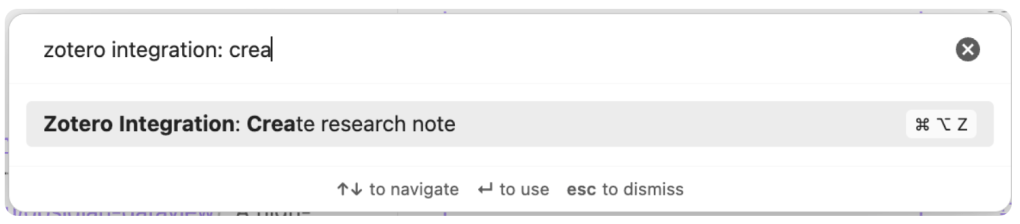
Set a hotkey (cmd+opt+z) or use the command palette to import research note
Explanation in each section
The full imported markdown file is here. The basic four blocks within a research note will be explained in detail.
1. Property
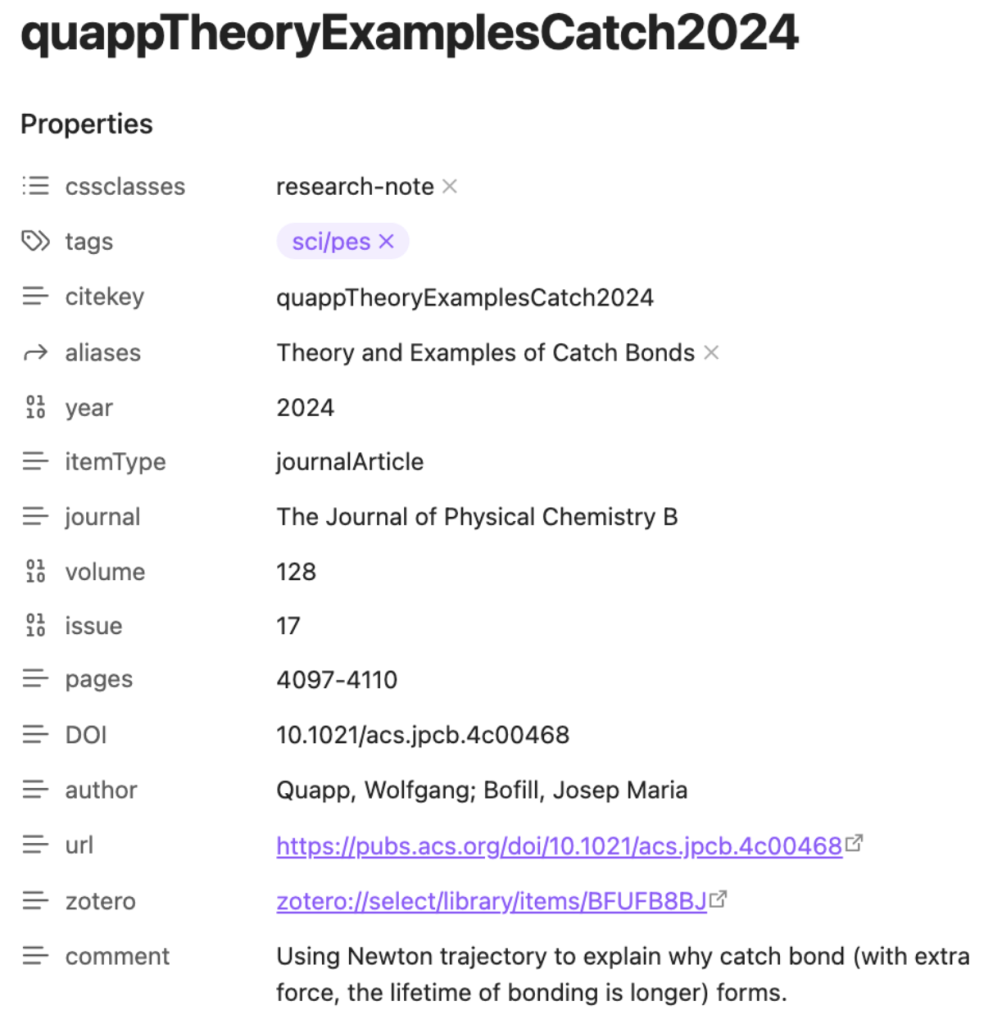
The Property section is difficult in making the template, but it is trivial after. One needs to think the given literature has many issues sometimes, like lost desired items or using non-standard alphabets. Before line 39 of the research note template, it is the syntax for setting property. One can modify them by their own needs.
To gain a better overview, I summarise all the literature into a single sentence, which I store in the comment property of the Obsidian markdown note. This corresponds to the Extra field in Zotero. Unfortunately, this is not a two-way sync; updates only flow from Zotero to Obsidian. My typical workflow involves reading the literature in Zotero, and then importing my highlights into Obsidian. I organise these highlights into a meaningful structure to enhance my understanding of the material. Afterwards, I return to Zotero to write a one-line summary, which I then import back into Obsidian to update the summary.
2. Questions I have in this reference
“It is not that I’m so smart. But I stay with the questions much longer.”
― Albert Einstein
Zotero screenshot
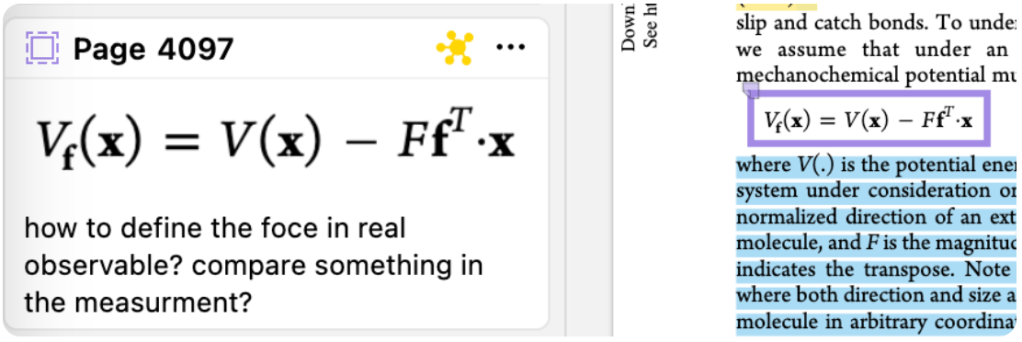
 I use purple colour to highlight the questions in Zotero, which will be given the tag
 #Q when I import them to Obsidian. With this tag, the purple highlight will show up in the Question I Have section without breaking the note structure. Using the dataview, it extracts the lines with tags starting from Q. Since my tag system is highly organised, it only has #Q and #Q/A.
Dataview query in Obsidian
## Questions I have in this reference
```dataview
TABLE WITHOUT ID
	link(L.link,string(L.position.start.line)) AS Line,
	L.text AS Questions,
	L.children.text AS Answer
WHERE
	file = this.file
Flatten
	file.lists AS L
WHERE
	contains(L.tags,"Q")
SORT
	contains(L.tags,"Q/A") ASC
Every time I revise the literature note or at the end of the reading, I check the questions I had and try to answer them. If I can answer them, I change the tag from #Q to #Q/A, which affects the sorting and put the question with the answer at the bottom. To be honest, there are many questions I haven’t answered. I was stressed in the beginning, but I realised it is a process of learning. The goal is not to make it perfect but to provide a way to think deeper.
Example of question
Editing mode
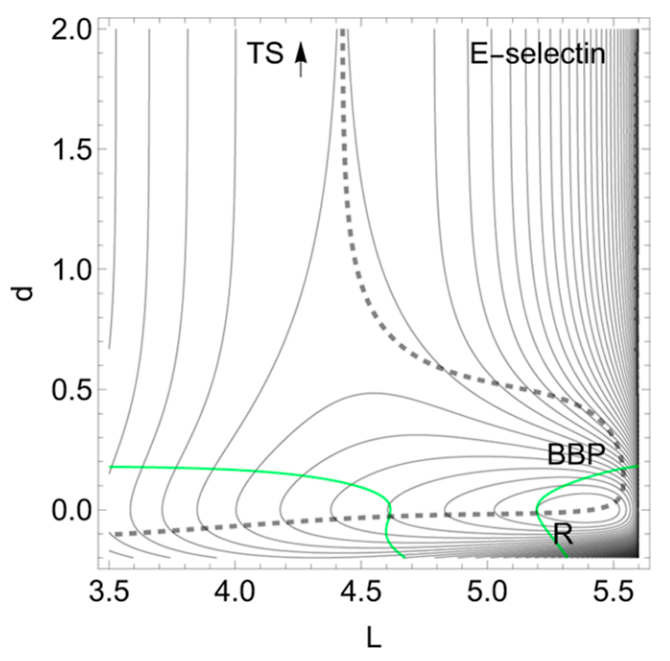
- #Q $V_{f}(\mathbf{x})=V(\mathbf{x})-F\mathbf{f}^{T}\cdot \mathbf{x}$
	- Note: how to define the force in real observable? compare something in the measurement?
Structure
- #Q question
	- answer
Reading mode

In the right column, I show the reading mode. The first column shows the line number of this question in this file with a hyperlink. If I click it, it will bring me to the location of this question. For a long document, it is helpful to search questions and answers back and forth. I didn’t write notes when I had questions while reading literature in Zotero, and I found it difficult to remind myself what questions I had. Now, if I have time, I write one or two words to clarify the issue. In the above example, I wrote down my questions, and it appears with the keyword Note: in the same block in Obsidian. I rearrange the structure so that it presents properly in the reading mode.
3. Summary
Editing mode
## Summary
>[!summary]
>Catch bond is a collection of bonds which have a longer lifetime with external forces. Using the Newton trajectory, the potential change topography such that the external forces increase the barrier height[^1].
>
>May be related to [[maedaArtificialForceInduced2016|Artificial Force Induced Reaction (AFIR) Method for Exploring Quantum Chemical Potential Energy Surfaces]]?


[^1]: An indicator for a catch bond can be a large movement of the involved stationary states of the PES under external force. [(p.4099)](zotero://open-pdf/library/items/XAVHD6YZ?page=4099&annotation=8TWHFRMM)

### Newton trajectory (NT)
Reading mode

End of research note

The summary section may not contain much technical detail, but it is essential for restructuring my understanding. I have organised the key highlights and created a new section titled “Newton Trajectory (NT).” To effectively organise the content, I utilise several tools such as footnotes, advanced tables, and callouts (as suggested in the previous section).
Using footnotes helps maintain document structure in editing mode, while they appear at the end of the document as references in reading mode. Callouts allow me to create double-column layouts and user-defined colour boxes in reading mode. Advanced tables make rearranging table data easier during editing.
4. Annotations
Editing mode
## Annotations
%% begin annotations %%
### Imported on 2025-02-22 7:46 am
- #Q $V_{f}(\mathbf{x})=V(\mathbf{x})-F\mathbf{f}^{T}\cdot \mathbf{x}$
- Note: how to define the force in real observable? compare something in the measurement?
%% end annotations %%
%% Import Date: 2025-02-22T07:46:40.073+01:00 %%
Reading mode
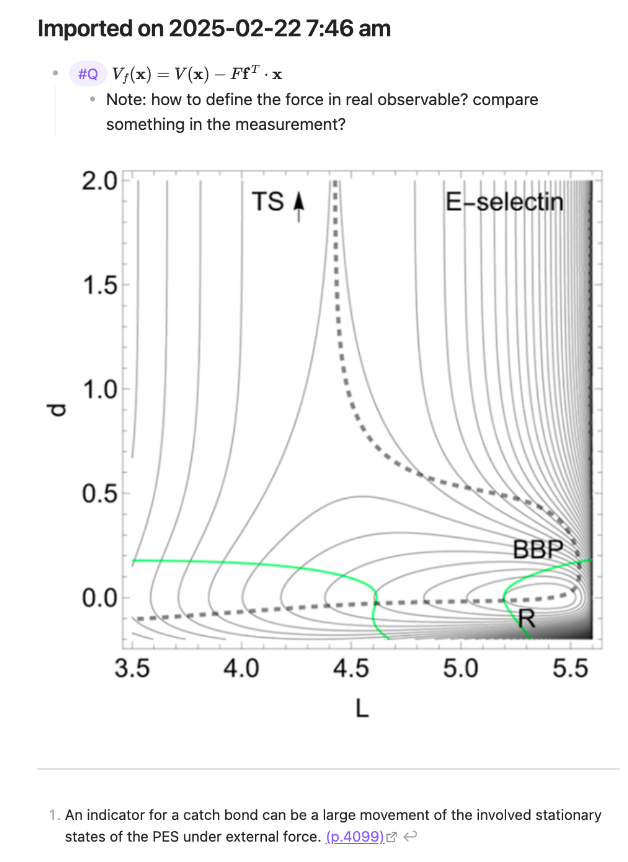
Every imported highlight has a link connected to the original paper in Zotero. When I’m in reading mode and click on this hyperlink, it opens the paper in Zotero and jumps to that specific location. This feature is helpful when writing a manuscript, as it allows me to track the exact original source, such as the equation numbers in the original paper.
Using capture figures is beneficial because they are independent figures that can be utilised in various notes. For instance, when summarising a specific topic, I can easily include the wiki link for that figure to present it. This approach does not require additional memory and is convenient to use.
Updating new highlights: an example featuring a book
The full imported markdown file is here.
Technical setting in research note template
For further importing highlights without washing out the existing note, one needs to add the syntax {% persist "notes" -%}[^5]. In my case, I add it in the Summary section.
{% persist "notes" -%}
{%- if isFirstImport %}

## Summary
>[!summary]
>
{% endif %}
{% endpersist %}
Workplace
For more complicated reference, a proper workplace is needed. The above discussion focuses on the Block 1 mostly, and here I show some examples in the Block 2.
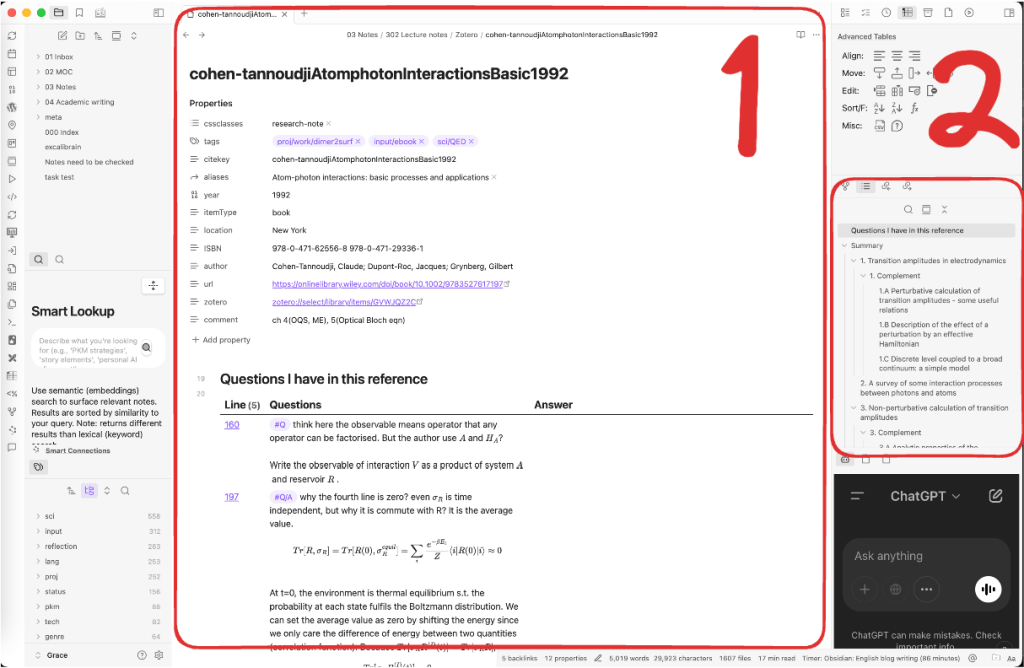
Screenshot of workplace
Block 1
In Block 1, the section titled “Questions I Have” is included. I provide detailed derivations that are missing from the book and present them in the answer column. Each question serves as an individual information block and can be moved freely. The remainder of Block 1 remains essentially the same, with four sections as I previously demonstrated.
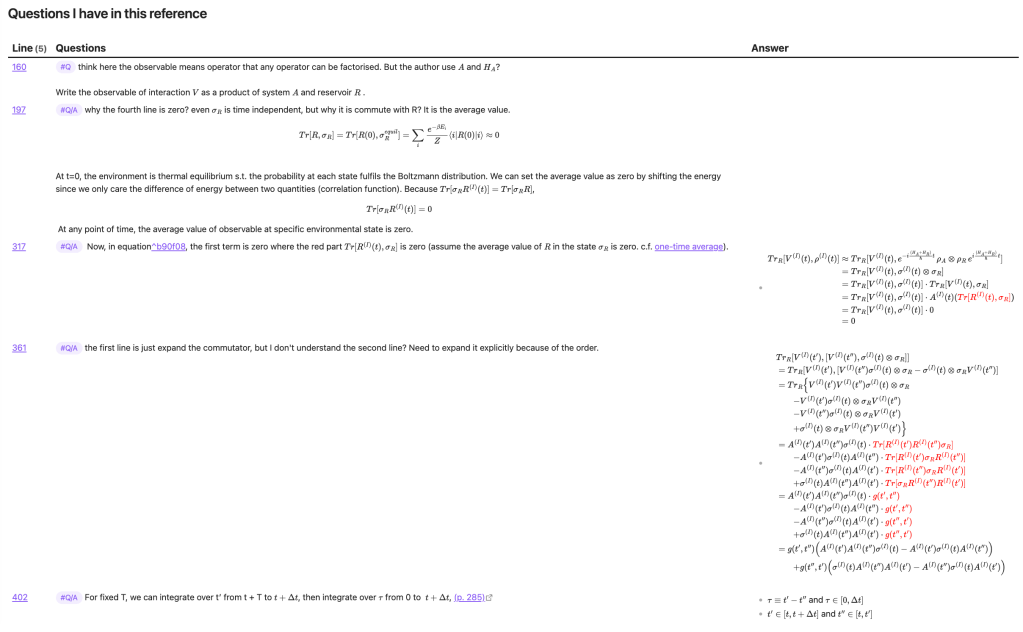
Questions I have

Block 2
Since I don’t typically finish an entire book, I find it helpful to create an outline that allows me to jump to specific sections. In my Obsidian, the workflow appears as follows: In the property labelled comment, I noted ch 4 (OQS, ME), 5 (Optical Bloch eqn), which reminds me to start with Chapter 4, focusing on Open Quantum Systems (OQS) and the Master Equation (ME). I use the outline panel in Block 2 to navigate directly to Chapter 4 for my reading. This chapter also contains a hyperlink that opens Zotero at the exact position needed.
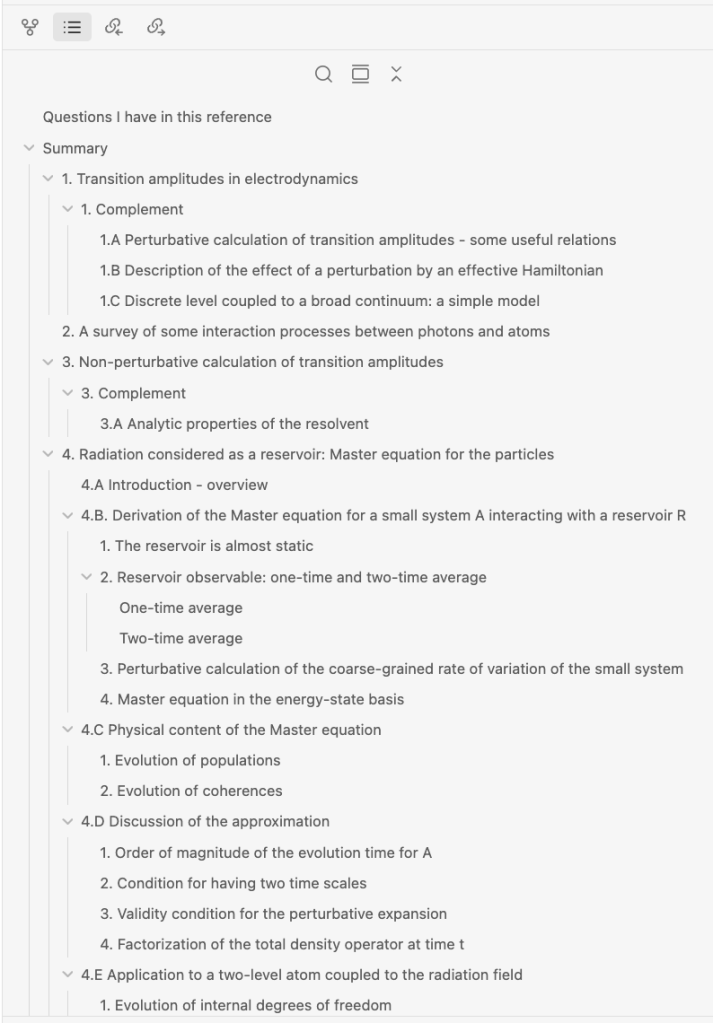
outline panel

Another commonly used feature in Block 2 is the local graph. This graph visually represents the connections between notes. The purple circle corresponds to the note I read in Block 1, while the grey circles illustrate the connections. These notes may include specific topic notes, project notes, or scientists referenced in this book.
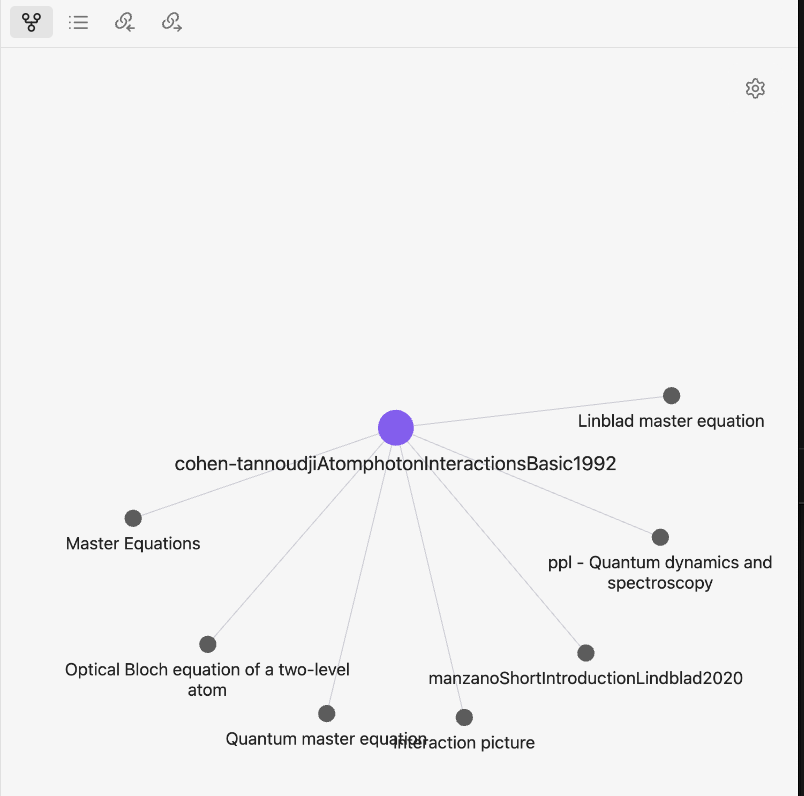
Local graph

Conclusion
I customise the research note template to fulfil my needs and optimise it for the past three years. The technical setting can be found easily[^2], so I do not repeat it in this blog. Here, I focus on how to deepen the understanding by customising the template and using two examples, a normal research paper and a book, to demonstrate the reading workflow.
Thanks to many authors who are willing to share their experiences and the discussion in the forum, I can learn from them and now share my own experience in this blog. Hope you enjoy it : )
[^1]: Other templates from the Obsidian forum
[^2]: Template from A. Phelan
[^3]: One of the troubles I still have for now is the connecting issue, if this signal Awaiting item selection from Zotero... appears for more than 3 min, just reboot the laptop. c.f. Reddit: Zotero connection working for anyone?
[^4]: I usually use yellow, but other colours can also be used. As shown in the code, yellow is not defined and if the colour is not defined, it is a normal highlight.
[^5]: How to update highlight and preserve properties: My post in forum), and the other discussion about import template.
 Artistic scientist
Leave a comment