
I have used several management tools for attending a conference, and based on my previous failure experiences (learning processes) I have a more realistic plan this time. Depending on positions and areas, the purposes of attending conferences are different, now I am a postdoc in theoretical chemistry and physics and use the conference I attended last week (DPG; German Physical Society) as an example, I can integrate many things and have a better method now.
To attend a conference with a contributed talk, several questions I have to solve:
- Administration stuff: how to follow up the registration steps in a short period (several months)? how to book hotels and public transportation tickets and also save all the receipts in a proper place?
- How to plan a scientific talk? how to make slides based on this plan? and how to follow the rules of the conference organizor.
- For such a big conference with many parallel sections, how to record the talks I am interested in, and how to make the notes I take searchable in the future? For these talks, how to integrate their slides into my notes?
- How to plan possible travel if I have free time during the conference?
To answer the above questions, the software I used is
- Obsidian (obviously) with many plugin[^1]
- Todoist
- Google Calendar
- The app from conference[^2]
, and the hardware I used are
- mobile phone (iPhone in my case)
- laptop (MacBook Air)
- tablet (iPad)
I will illustrate how these software and hardware play the roles shortly in the following. The most important one is the integrated centre, Obsidian, which combines almost all the tools, here are the main sections in Obsidian Note,
- Properties (metadata)
- Management
- Preparation
- Schedule
Both the first and second sections (Properties and Management) can be used anytime, but the third and fourth sections (Preparation and Schedule) have a chronological order. The preparation stage is about several weeks or a few months and starts from when I know about this conference and would like to go. The schedule stage is only for a couple of days depending on how long the conference is.
Properties

The first part is the properties (metadata, something similar in the head of Notion notes as well) which can be used as the filter in other notes. For example, before the conferences, the property registration shows the deadline in my research centre note by Dataview (Obsidian plug-in). And during the conference, the note automatically moves to other parts of my research centre note by switching the tag #status/doing and then only shows the start and end properties in the Dataview table. I also link the local directory in the property local which has my latex source code and e-copy of receipts. The empty property locations is for the plug-in, Map View, which shows the geography relations of selected places on a map.
Management
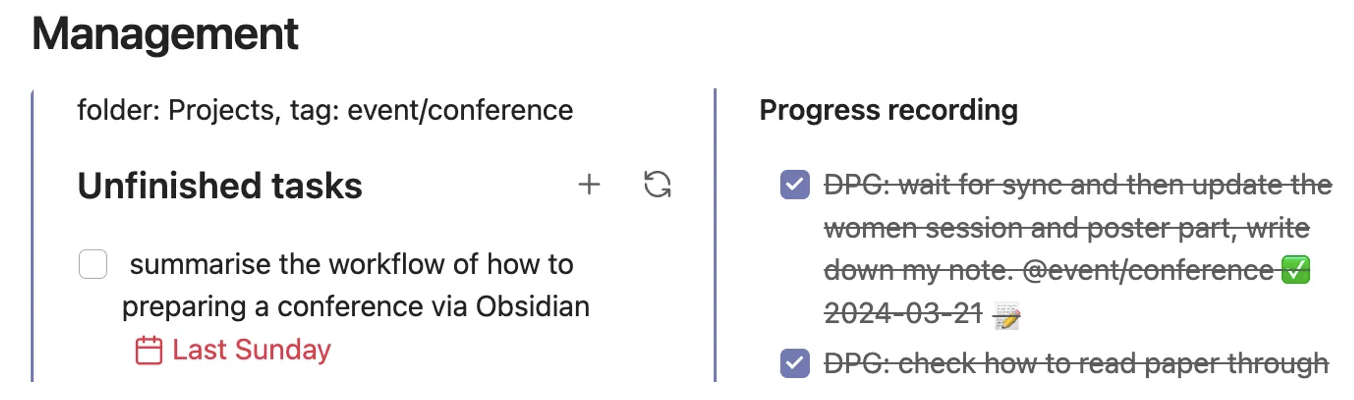
Two parts are shown in the Management section, unfinished tasks and progress recording. For this part, I mainly use the Todoist app for task management because it has a good shortcut on my iPhone. Obsidian has the other plug-in task but to set up the shortcut I need to do extra work. Anyway, for my current workflow, I use todoist sync to add tasks when I use a MacBook and use the shortcut of the Todoist app on my iPhone.
If I have time, I use my MacBook to see what tasks I have completed and add tasks by todoist sync. No need to open other programs and reduce distraction, and only focusing on this Obsidian note can manage tasks. I usually check what tasks I have done (right column) and think about what potential tasks I need to do (left column) in this part.
To quickly capture ideas and tasks, I use my iPhone with the Todoist app. The difficult part may be to remember which folder and tag I need to add when I don’t have time (and I usually put them in the inbox folder). Sometimes I only add keywords but forget what exactly things I need to do. For such tasks, I simply delete them and try to remind myself next time. Yes, a little bit frustrating but it is part of the learning process.
Preparation
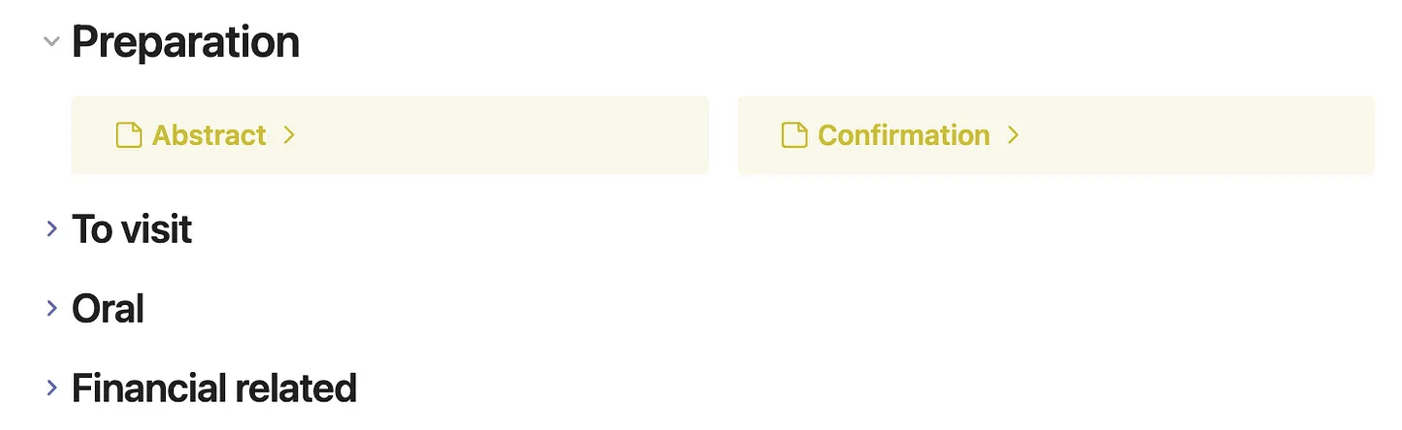
In the preparation stage, a confirmation letter from the organizer and the financial-related administration is important. Because I have a contribution talk, I also need to submit an abstract and have an extra section, oral, in this part. The final section, to visit, is something I am interested I will put them here with geological information which can be used later.
To write an abstract, I usually have two or three versions before I submit it. After I discuss it with my supervisor, I usually add one extra version. I use latex and git to write and do version control where they are integrated into the editor, VSCode. And here in the Obsidian Note, I only preserve the final version. Two purposes are listed, 1. having an abstract in hand makes it easier to plan the talk 2. because I attend many conferences, I sometimes need references to remind me of what I have done in the past to plan the future. The abstract is a hook to do that.
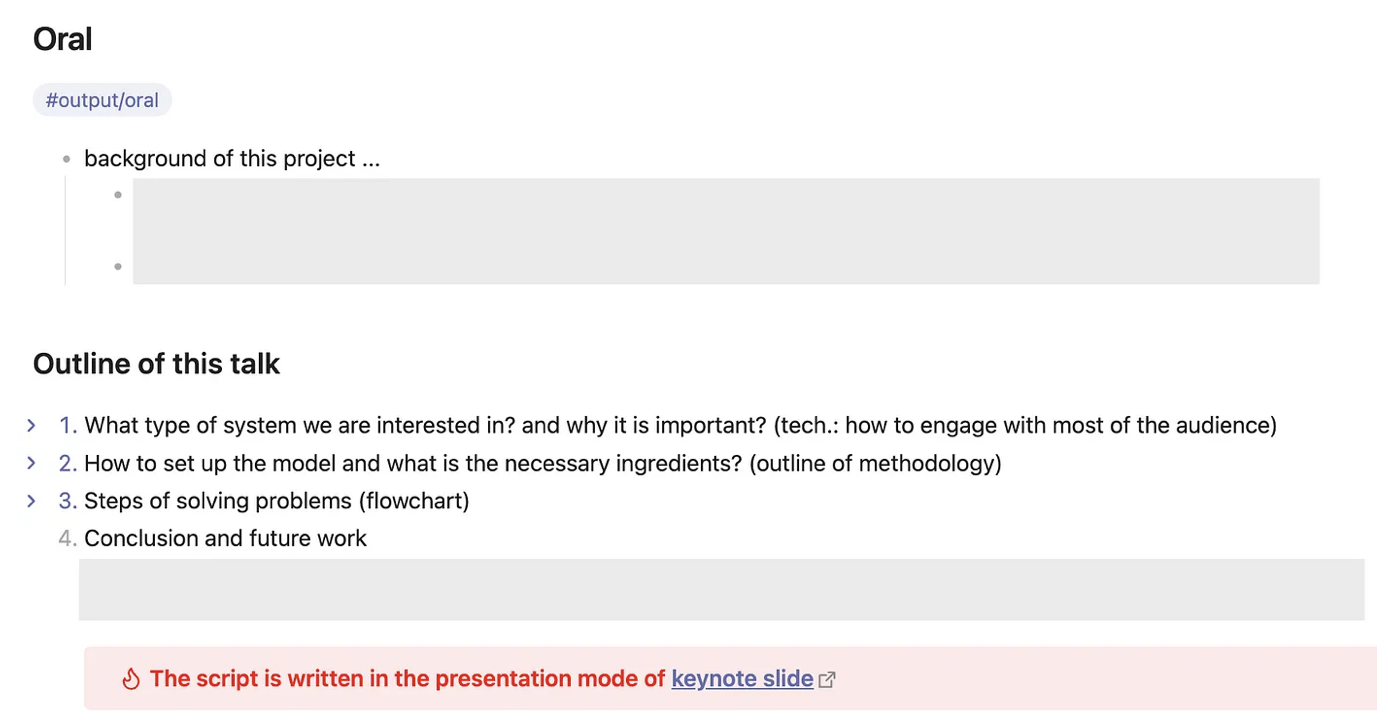
To plan a scientific talk, I start with the main references of this project and write the outline. The grey block under the background of this project is the wiki links of the main references. They are literature notes (c.f. Zettelkasten) and link to my Zotero library. On a literature note, I can quickly capture the idea of this paper based on the overview I wrote.
In the outline of this talk, it addresses the storyline which is a self-conversation process. I list the main questions and write down the answers in the toggled part. This process usually takes several days to make the storyline clear.
Finally, I use Keynote to make slides (because I want to use my iPhone as the remoter to control the slides when I give the speech). Even now I can freely speak English but I still write down the scripts every time. It does not aim to overcome the language barrier, but a process to increase the quality of a scientific talk. When I give a talk, I don’t have time to look at my script because I need to focus on the storyline, and the facial expression of the audience (if I speak too fast or too slow) and I also need to control the time. However, in the preparation stage, writing down the script helps me to re-organize my thoughts. There are many details to be memorized and some irrelevant noises need to be deleted.
Schedule
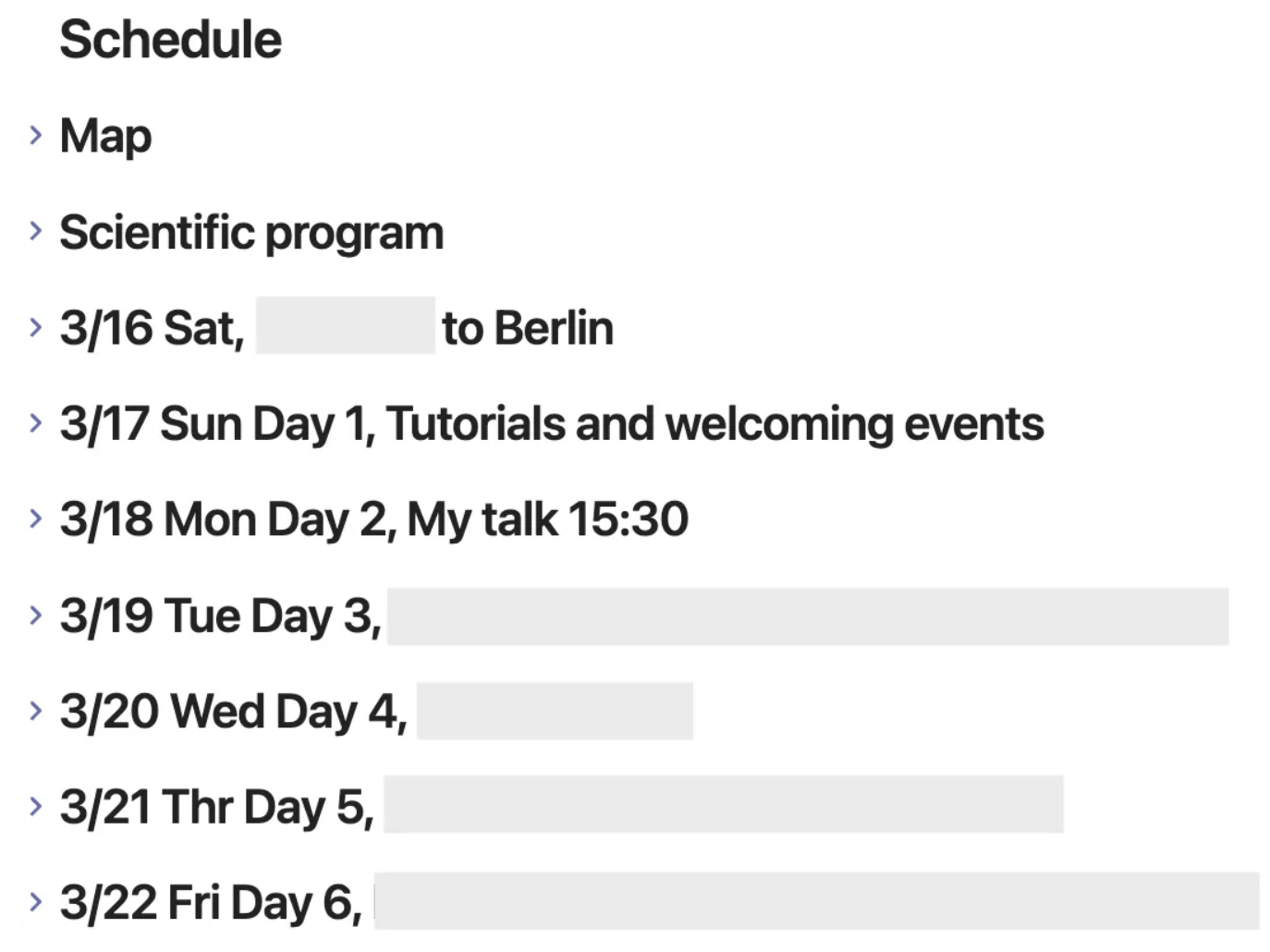
For such a big annual conference, the schedule is super intensive. Three parts are listed,
- Map
- Scientific program
- Schedule of each day
The Map part provides an overview of geological relations, and the Scientific program has the key points for this conference. The daily schedule has the notes I took in each presentation.
Map
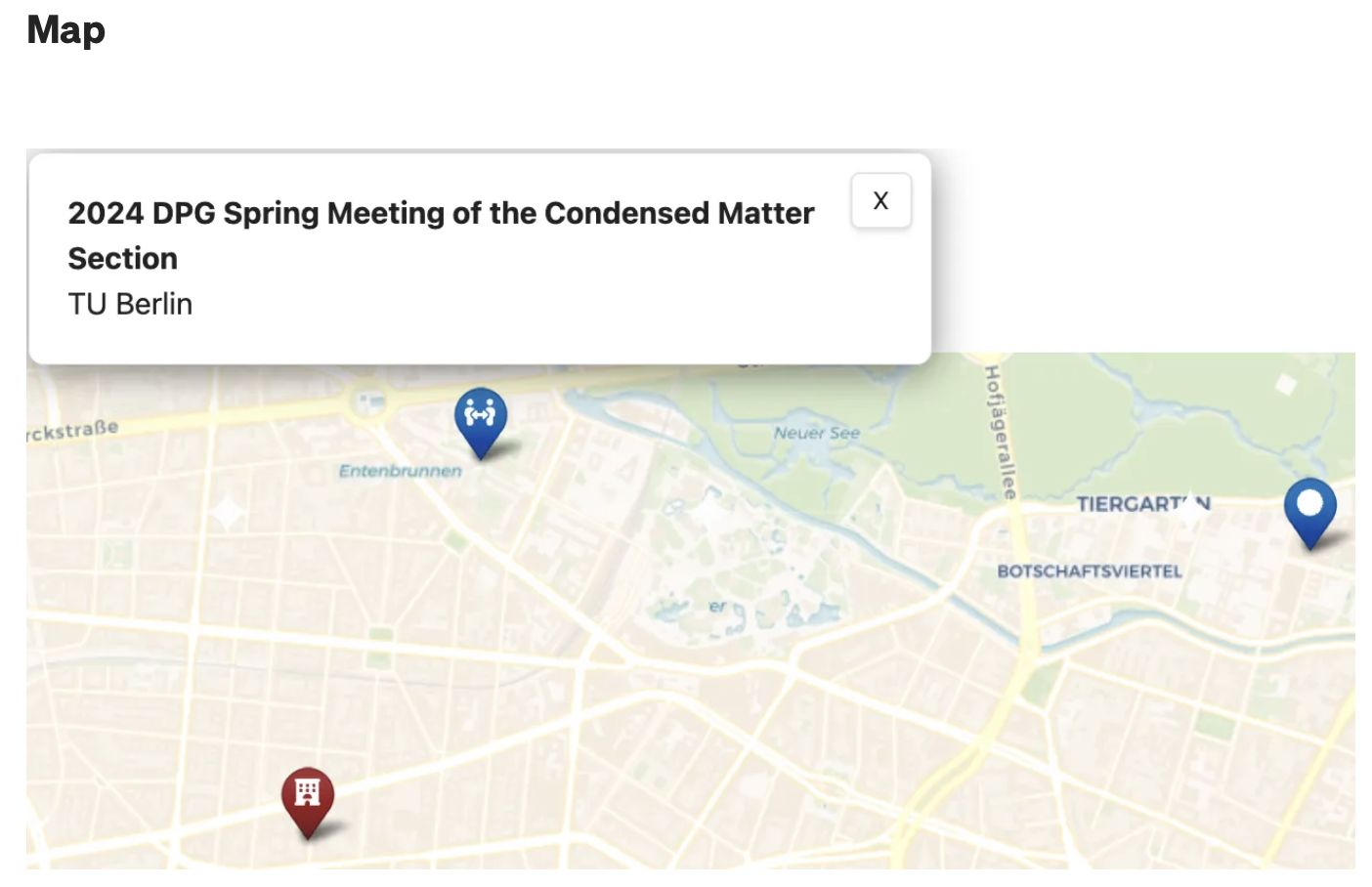
First, I recorded the geological information for the conference buildings and the hotel I booked. Unfortunately, there are MANY buildings for different sections and I still get lost this time (google map is not necessary to help). I also list some places I would like to visit near the conference.
Scientific program
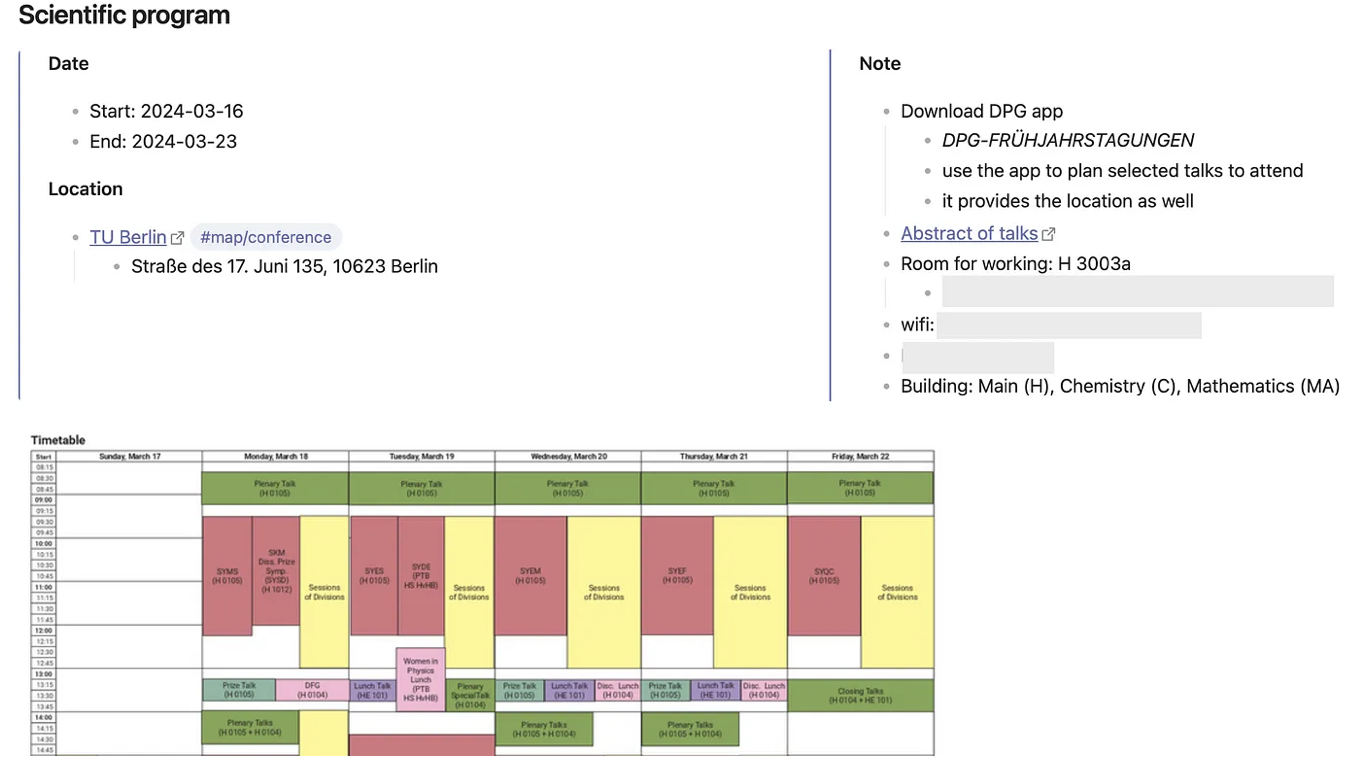
I write down the key points from the conference brochure.
Daily schedule
Finally, the most important part, which aims to answer this question
For such a big conference with many parallel sections, how to record the talks I am interested in, and how to make the notes I take searchable in the future? For these talks, how to integrate their slides into my notes?
The conference app has the organized abstracts for each talk and I use it to mark the talks I am interested in. During the talk, I used my iPad to take notes from the excalidraw plug-in. And after the day, I put all the handwriting notes in this Obsidian note in logical order. In advance, I also add several tags to search for them in the future or show selected information in my research centre note via Dataview. The demonstrated note for one talk is shown as follows,
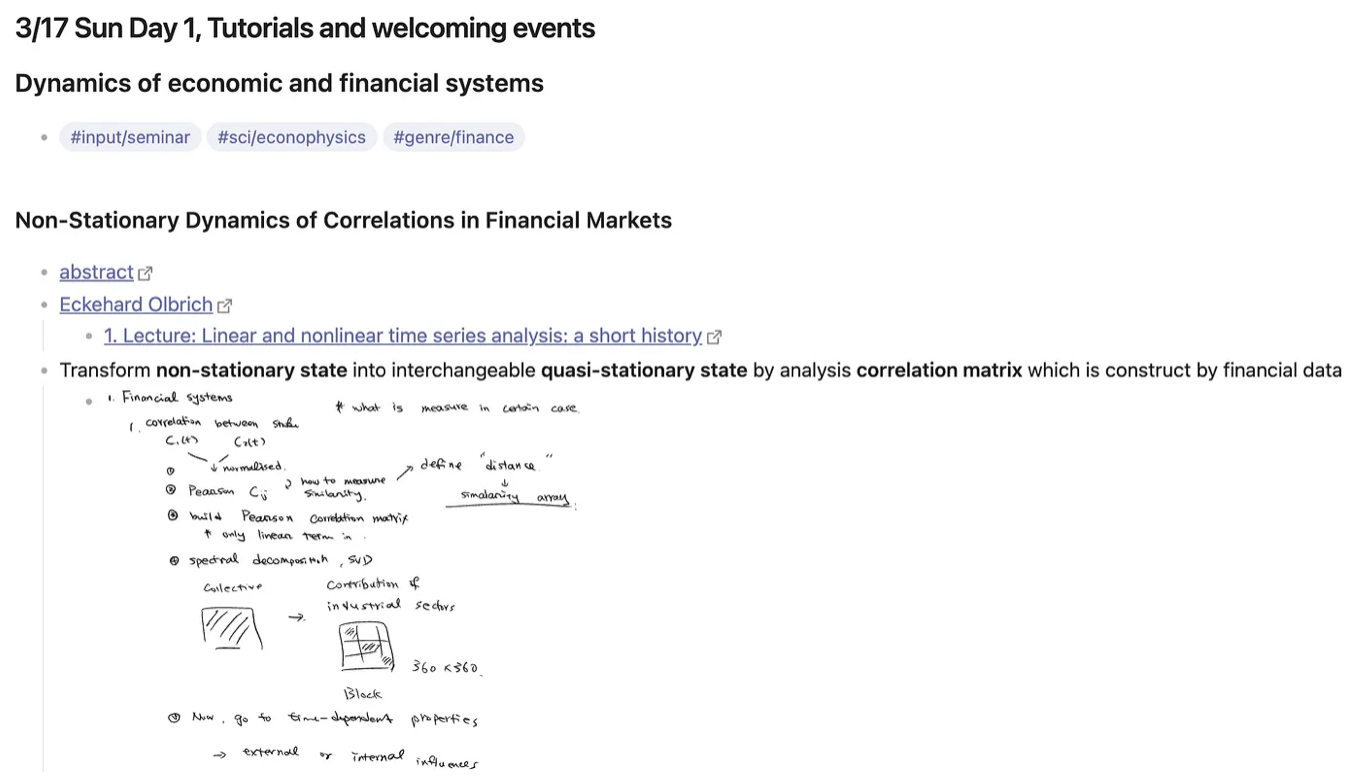
The tags show the resource (#input/seminar) and topics (#sci/econophysics and #genre/finance) of this talk. Some metadata such as the abstract and the information of the presenter are recorded. Next, I usually use one sentence to summarise the talk or the most important information I got (and here it is Transform non-stationary state into ....). Then, the detailed handwriting is shown.
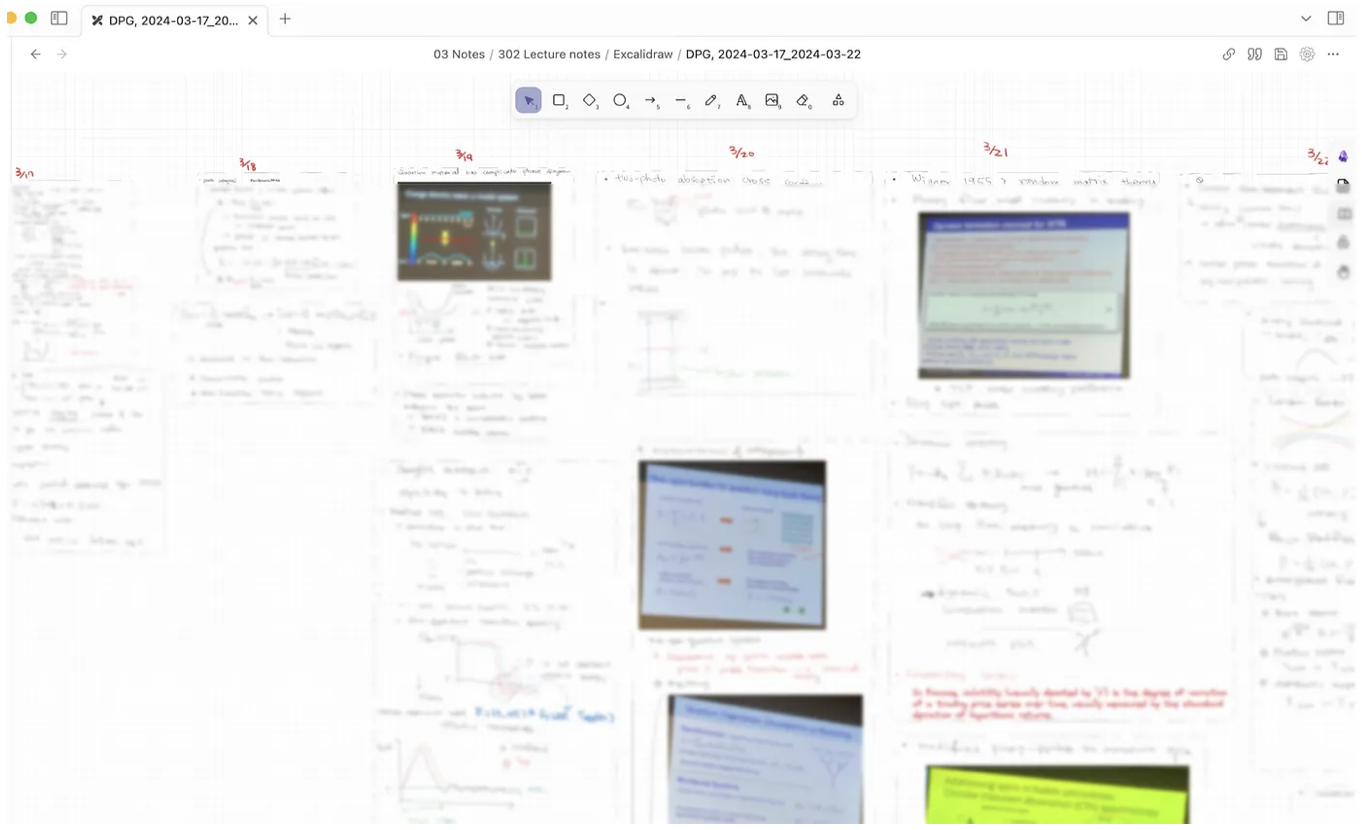
Excalidraw has many powerful functions. One of them is it can be embedded in the Obsidian markdown note for each block of my handwriting. Following is the excalidraw note for this conference which has many handwritten from each talk. Instead of embedding the whole excalidraw note, I separate them into different blocks and then embed each block into each talk (as shown in the above screenshot). Another function I used is to insert pictures in excalidraw. I use my iPhone to take pictures of the presenter’s slides, and then insert them from my iPad (it is super fast for syncing two devices). During the talk, I can even write something on the picture.!
Not everything follows the original plan, but overall I like this workflow since it can also be adapted to unexpected things and still track the main plan.
[^1]: Obsidian plugin and setting: 1. excalidraw 2. todoist sync 3. todoist completed 4. map view 5. footnote shortcut 6. callout (optional) 7. multi-column css file (optional)
[^2]: The conference app.
 Artistic scientist
Leave a comment